 NounDesk
Add devices
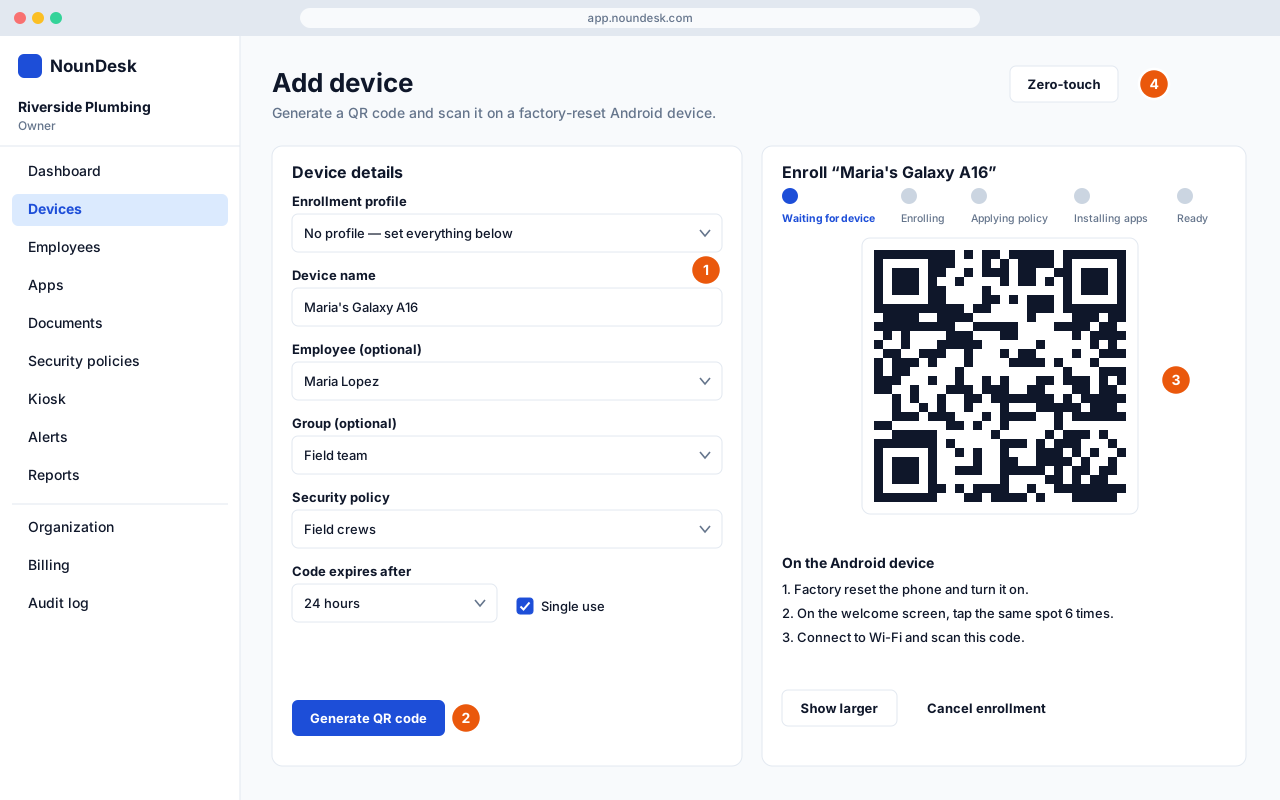
Who: Owner, Admin, Operator. Requires Google connection for real devices.
- Go to Devices → Add device. Under Device details, choose an Enrollment profile, or leave No profile — set everything below and fill in Device name, Employee (optional), Group (optional) and Security policy. Choose when the code expires (1 hour, 24 hours or 7 days). Keep Single use ticked so the code stops working after one device.
- Select Generate QR code.
- On the Android device: factory reset it and turn it on. On the welcome screen, tap the same spot 6 times, connect to Wi-Fi and scan the code. The page moves through Waiting for device → Enrolling → Applying policy → Installing apps → Ready. Use Show larger if the code is hard to scan.
- Buying phones from a reseller? Use Zero-touch instead (see Zero-touch enrollment).
When it finishes you’ll see Device enrolled (or Device ready). Select Open device or Add another device. If the code expires, select Generate a new code. To stop, select Cancel enrollment.
Requirements: Android 8 or newer, company-owned, and factory reset first. The phone must be able to reach the internet during setup.
Enrollment profiles (enroll many devices the same way)
- Go to Devices → Enrollment → New profile.
- Enter a Name (for example “Field crews”), and choose the Group, Security policy, an optional Device name prefix and when the code expires (up to 30 days). Untick Single use to make a reusable code for a batch of devices.
- Select Create profile. Use Enroll on the profile to show its code, or Make default so Add device starts with it.