 NounDesk
Security policies
Who: all roles can view. Creating and editing needs Owner or Admin.
A policy is the set of security rules a device follows. Every device has one.
Create a policy
-
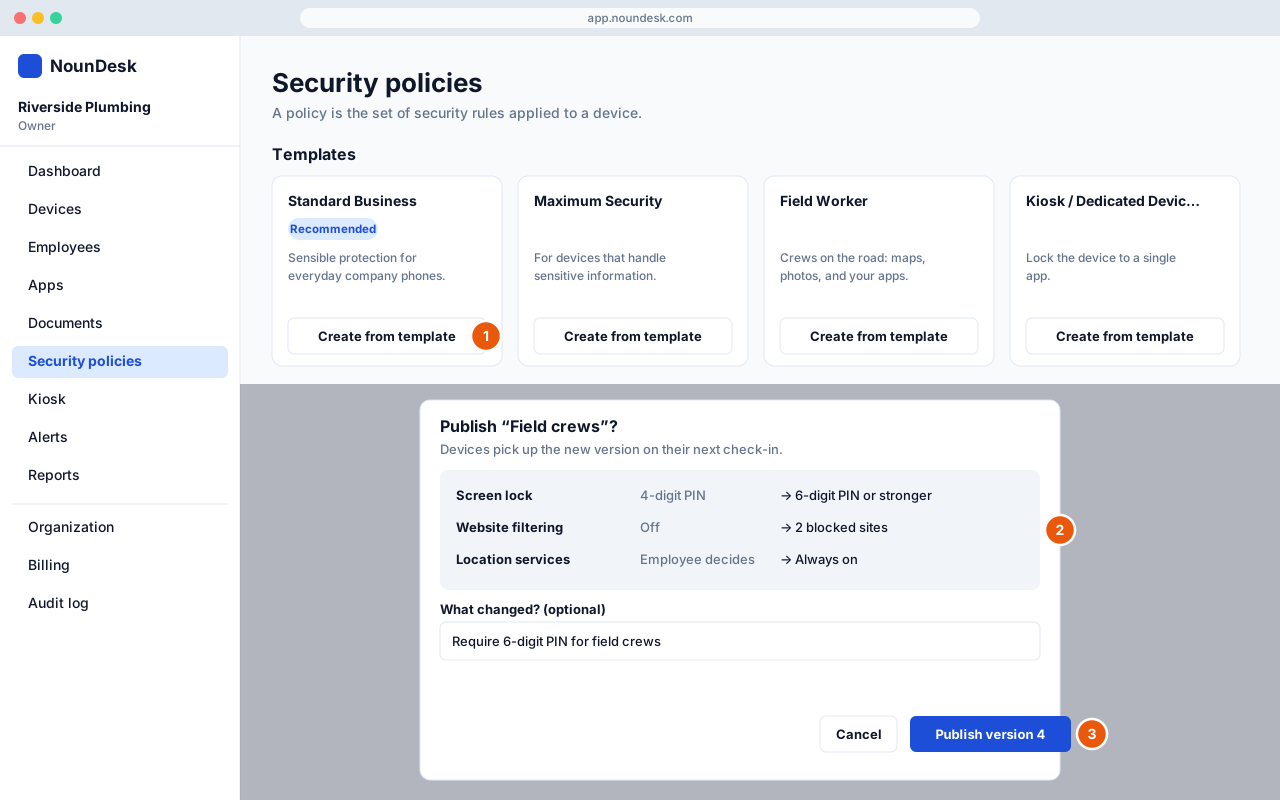
Go to Security policies. Under Templates, pick one and select Create from template:
- Standard Business (recommended): sensible protection for everyday company phones.
- Maximum Security: for devices that handle sensitive information.
- Field Worker: crews on the road (maps, photos and your apps).
- Kiosk / Dedicated Device: locks the device to a single app.
- Custom: starts from Standard Business so you can change what you need.
Give it a Policy name and select Create and edit.
Edit the settings
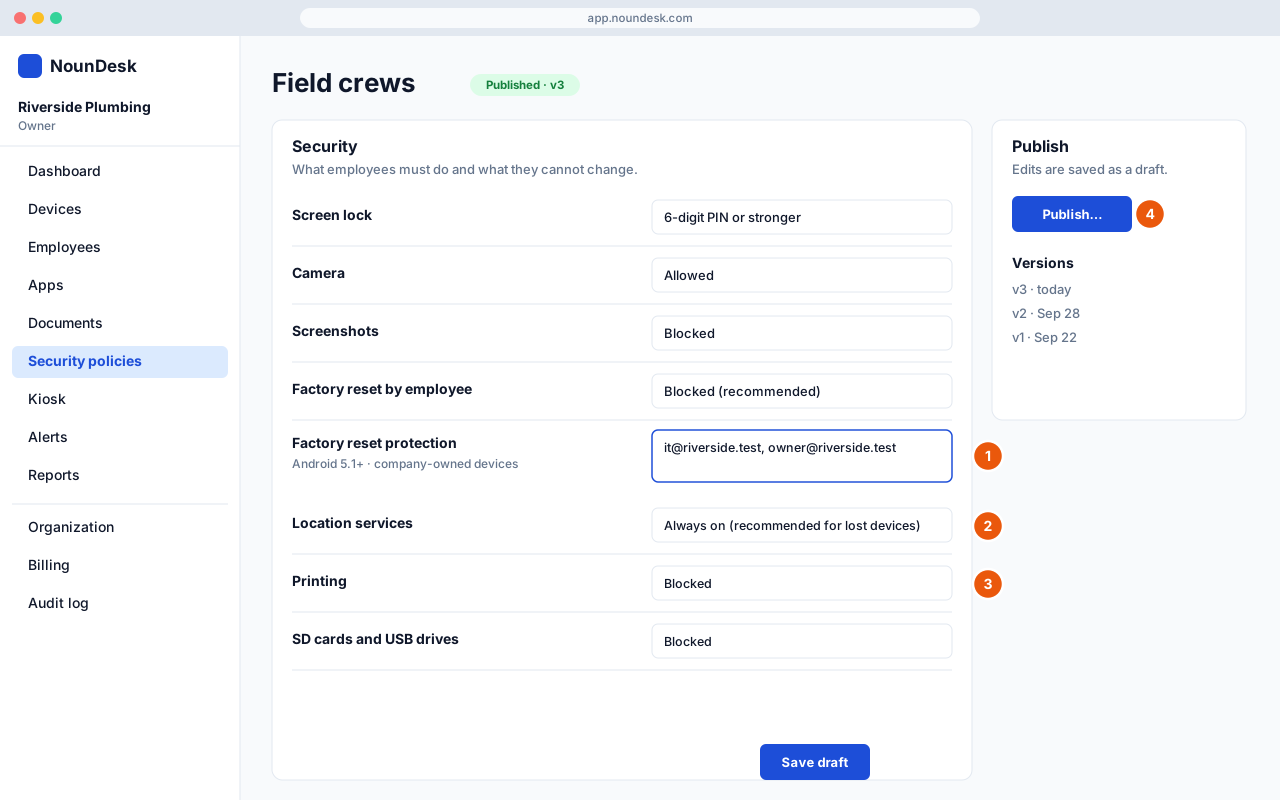
The editor has these sections: Name, Security, Network, Updates, Apps, Website filtering and Kiosk mode. Each setting shows which Android versions it needs.
- Factory reset protection. Enter up to 10 Google accounts your company controls. If someone resets the phone without NounDesk, it stays locked until one of those accounts signs in. Use accounts you’ll keep access to. Leave it empty to turn it off.
- Location services: Employee decides, Always on (recommended for lost devices) or Always off. Off means a lost device can’t report where it is.
- Data protection: block Printing (Android 9+) and SD cards and USB drives, alongside Screenshots and USB data transfer. The Maximum Security template blocks them all.
- Publish. Your edits are saved as a draft first (Save draft). Select Publish… to send them to devices (next steps).
Other useful settings:
- Screen lock strength, auto-lock time and password expiry
- Camera, Apps from outside Google Play, Developer options and Factory reset by employee
- Encryption and fingerprint or face unlock
- Network: Wi-Fi networks, always-on VPN and Private DNS
- Updates: a system update window and app update rules
- Apps: which apps are required, available or blocked, plus Remote support (see Remote support)
Publish, undo and apply
- Select Publish…. NounDesk shows exactly what changes.
- Optionally note What changed?, then select Publish version N. Devices pick up the new version at their next check-in.
- Made a mistake? Under Versions, choose an older version and select Restore as draft, then publish again. Discard draft throws away unpublished edits.
Under Actions: Apply to devices moves chosen devices onto this policy, Make default sets the policy new devices get, and Archive retires an unused policy.