 NounDesk
Invite admins
Invite the people who help you look after company devices. Each person gets their own sign-in and a role that decides what they can do.
Who: Owner. Everyone else can see the Admins list but can’t change it (“Only owners can invite or remove admins.”).
Invite someone
- Go to Organization and find the Admins card.
- Under Invite an admin, enter their Work email.
- Choose a Role: Admin, Operator, Viewer or Owner. See Roles and permissions for what each can do.
- Select Send invitation. You’ll see Invitation sent to their email.
The person appears under Pending invitations with an Invited (time ago) badge until they accept.
Email not set up? If NounDesk can’t send email, it says so and shows the invitation link instead (“Share this link with them instead (valid 7 days)”). Select Copy and send it to them yourself.
You can’t invite someone who already has access, or someone with an invitation that’s still valid. For the second case, use Resend instead.
What the invitee receives
An email with the subject You’ve been invited to manage your company on NounDesk. It says who invited them and with which role, and has an Accept invitation button. It also tells them to sign in, or create an account, with the invited email address, and the date the invitation expires.
Invitations expire 7 days after they’re sent.
Accepting an invitation
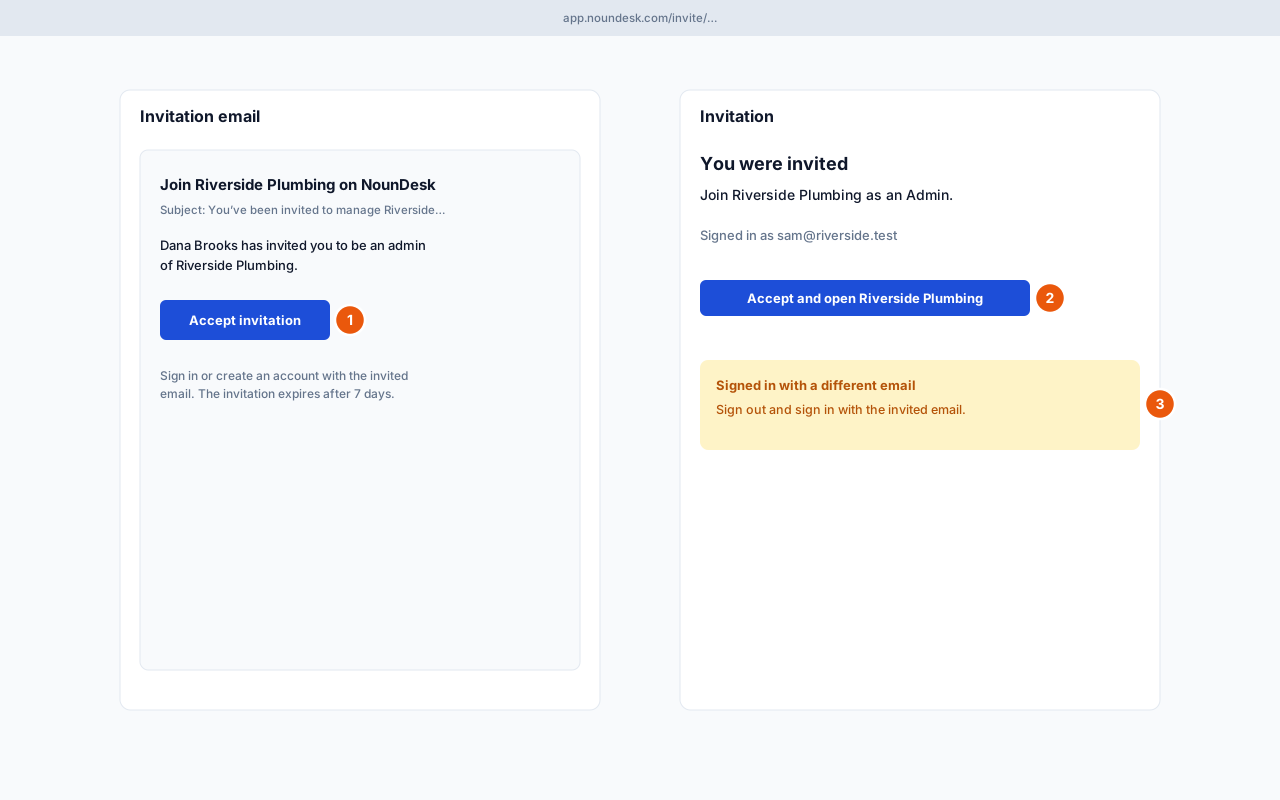
What the invitee sees depends on whether they’re signed in:
- Not signed in: the page says Join your company and which role they were invited to. It asks them to Sign in or Create an account with the invited email. After confirming a new account’s email, they open the invitation link again if they aren’t brought back to it.
- Signed in with the invited email: they select Accept and open your company. NounDesk opens your dashboard.
- Signed in with a different email: they see Signed in with a different email. They select Sign out and sign in with the invited address.
If the link no longer works they’ll see This invitation has expired or This invitation link is not valid, with “Ask the owner to send a new invitation.”
Resend or revoke a pending invitation
Under Pending invitations:
- Resend sends a fresh email with a new link and restarts the 7 days. The old link stops working. An invitation marked Expired can be resent too.
- Revoke cancels the invitation. The link stops working straight away.
Change someone’s role
- In the Admins list, find the person.
- Choose a new role in the Role menu next to their name. The change saves straight away.
Remove someone
- In the Admins list, select Remove next to the person.
- Confirm with Remove admin. They lose access to NounDesk immediately.
The owner rules
- An organization always needs at least one Owner. You can’t change the last Owner to another role (“An organization needs at least one owner. Make someone else an owner first.”) or remove them. Make someone else an Owner first.
- You can’t remove yourself. The Remove button is greyed out on your own row. Ask another Owner to do it.
Every invitation, acceptance, role change and removal is recorded in the audit log.