 NounDesk
Policy versions and publishing
Changes to a security policy never reach devices by accident. Your edits are saved as a draft first, you see exactly what will change, and every published version is kept so you can go back.
Who: all roles can view policies and their versions. Saving drafts, publishing, restoring, applying and archiving need Owner or Admin. Make default needs Owner.
How it works
- Draft: your saved, unpublished edits. Devices don’t see them.
- Version: each time you publish, the draft becomes the next version (version 2, 3 and so on). Devices pick it up at their next check-in.
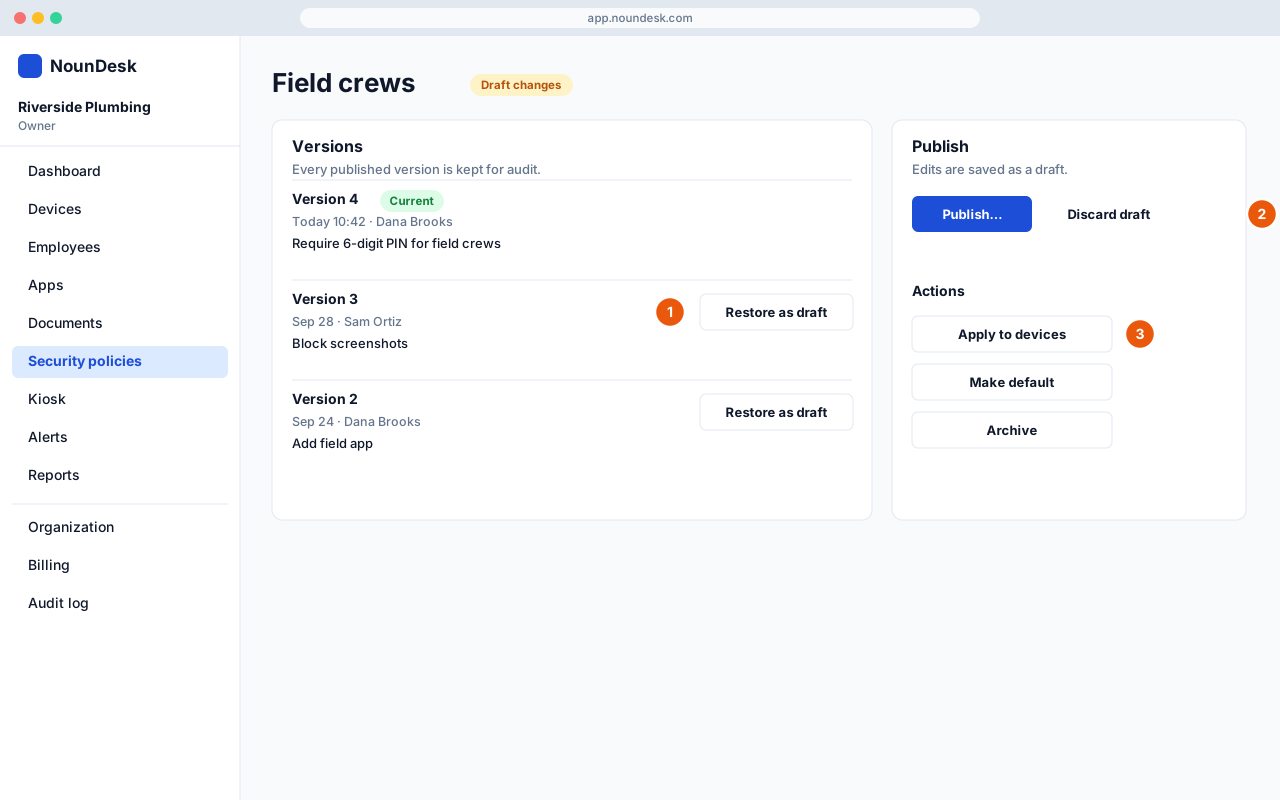
- The policy’s status badge shows where it stands: Published · vN, Draft changes, Publishing… or Publish failed.
Save a draft
- Go to Security policies and open the policy.
- Change the settings you need. Unsaved changes appears next to the buttons at the bottom.
- Select Save draft. You’ll see Draft saved. Devices keep version N until you publish.
Use Discard next to it to throw away edits you haven’t saved yet.
- The button says Save policy instead of Save draft while the policy hasn’t been published to Google yet, for example before you connect Google. It works the same way.
- The policy’s Name and Description save straight away. They don’t need publishing because devices don’t use them.
- If you change settings back to exactly what’s published, saving clears the draft: Saved. Nothing changed for devices; version N stays published.
- While a draft exists, the editor shows You are editing a draft.
Publish a new version
- In the Publish card, select Publish…. The button is available only when there’s a draft.
- The Publish “policy name”? dialog shows:
- The version change, for example Version 3 → 4, and how many devices use the policy.
- A table of every changed Setting, with its value Now and After publish.
- Compatibility notes for settings some devices may be too old for.
- This change affects employees if the change interrupts people, such as asking for a new PIN, removing an app or Wi-Fi network, turning off the camera, or locking devices into kiosk mode. Tick I understand what employees will experience to continue.
- Optionally fill in What changed? (optional), for example “Require 6-digit PIN for field crews”. It’s shown in the version history.
- Select Publish version N.
When it’s done you’ll see Version N published. Devices pick up the new version on their next check-in. If your organization isn’t connected to Google yet, the message says the version is saved and reaches devices once you connect. See Connect Google.
To check that devices have it, look at Devices using this policy on the policy page. Each device shows Up to date, Updates on next sync or Not reported yet.
Changes that only tighten silent restrictions, such as blocking developer options, don’t trigger the employee warning.
If publishing fails
If Google doesn’t accept the change, the policy shows Publish failed and The last publish did not go through, with the reason. Your draft is kept and devices stay on the previous version.
- Read the reason in the red message.
- Fix the setting it mentions, or wait a minute if it was a connection problem.
- Select Publish… again.
Discard a draft
To throw away all unpublished changes:
- In the Publish card, select Discard draft.
- In Discard draft changes?, select Discard draft. Select Keep editing to back out.
The published version stays exactly as it is on devices.
Versions and rollback
The Versions card lists every published version, newest first, with the date, who published it and the What changed? note. The live one is marked Current.
- Select View to see all the settings in that version, and Hide to close it.
- To go back to an older version, select Restore as draft, then confirm with Restore as draft in the dialog.
Restoring copies the old settings into your draft. It doesn’t change devices yet: review the draft, then publish it as a new version. You’ll see Version N copied into the draft. Review it above and publish when ready.
Every published version is kept for your records. Restoring never deletes later versions.
Policy actions
The Actions card on the policy page (and the buttons on each policy in the list) has:
| Action | What it does |
|---|---|
| Apply to devices | Opens Apply “policy name” to devices. Tick devices under Managed devices (or Select all), then select Apply to N devices. Selected devices switch at their next check-in, usually within a minute. The result lists each device that worked or didn’t. Needs a Google connection. |
| Make default | New devices get this policy unless you choose another one when you enroll them. Owner only. |
| Archive | Hides a policy you no longer use. Confirm with Archive policy. Nothing changes on devices. |
- You can’t archive the default policy (Make another policy the default first) or a policy devices still use (Move them first). Move those devices with Apply to devices on another policy.
- Archived policies are read-only. On Security policies, select Show archived to see them and Hide archived to hide them again.
- Devices not currently managed (waiting, erasing or erased) can’t receive a policy and are listed separately in the apply dialog.
Related pages
- Security policies
- Policy settings reference
- Device groups
- Reports and the audit log: every publish, restore and archive is recorded.