 NounDesk
App compliance
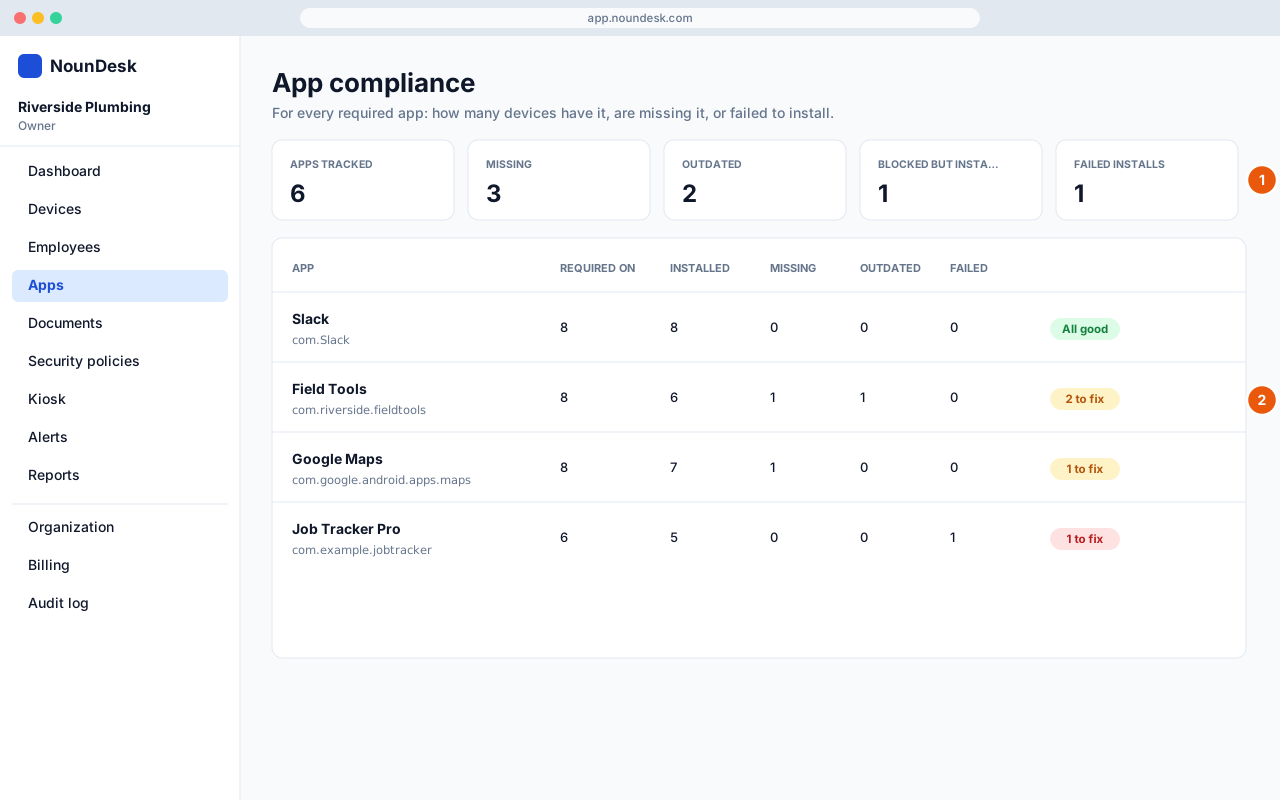
The App compliance page checks every managed device against the app rules in its security policy. It shows which required apps are installed, missing or outdated, which installs failed, and where a blocked app is still on a device.
Who: all roles can view. Fixing problems (changing policies) needs Owner or Admin.
Open the page
Go to Apps and select App compliance.
If no policy has app rules yet, you’ll see No app rules yet. Select Open security policies and mark apps as Required, Optional or Blocked in a policy first. See Managed Google Play.
The page checks devices against published policies. Draft changes don’t count until you publish them.
The totals
The tiles at the top add up every app and device:
| Tile | What it counts |
|---|---|
| Apps tracked | Apps that have a rule in at least one published policy. |
| Missing | Devices that should have a required app but don’t yet. |
| Outdated | Devices with a required app older than the policy’s minimum version. |
| Blocked but installed | Devices that still have an app their policy blocks. |
| Failed installs | Devices where Google Play tried to install a required app and couldn’t. |
Below the tiles, a line says how many managed devices were checked.
Each app
Apps with the most problems are listed first. Each row shows:
| Column | Meaning |
|---|---|
| Required on | How many devices have a policy that requires the app. |
| Installed | How many devices have the app (including outdated ones). |
| Missing | Required but not installed yet. |
| Outdated | Installed, but older than the Minimum version code in the policy. |
| Blocked-installed | Blocked by the policy but still on the device. |
| Failed | The install failed. |
On the right you’ll see the app versions found on devices, with how many devices have each, and a badge: All good or N to fix.
Select a row to open it. You’ll see a suggested fix and every device covered by a policy that mentions the app, with its version and status: Installed, Missing, Outdated, Blocked but installed, Install failed or Not required. Select a device name to open it.
What each status means and how to fix it
| Status | What it means | What to do |
|---|---|---|
| Installed | The app is on the device and meets the minimum version. | Nothing. |
| Missing | The app is required but not on the device yet. Devices install required apps automatically when online. | Usually nothing: wait for the device to come online. Missing for more than a day usually means the device is offline or Google Play is blocked. |
| Outdated | The installed version is older than the policy’s minimum. | Wait for the device’s next app update, or ask the employee to open Google Play. Check App updates in the policy (see System and app updates). |
| Blocked but installed | The policy blocks the app but it’s still on the device. | It’s removed the next time the device syncs the policy. If it stays, check the device is online. Some apps that came with the phone can’t be removed. |
| Install failed | Google Play couldn’t install the app. | See the reasons below. |
| Not required | The policy marks the app as optional or blocked and it isn’t installed. | Nothing. |
Why an install fails
Open the device’s Security tab to see the exact reason. These are the reasons Google reports and what to do:
| Reason shown | What to do |
|---|---|
| App not found on Google Play | Check the package name in the policy and correct it. |
| App not approved for your organization | Approve the app, then re-apply the policy. Adding it from Managed Google Play is the easiest way. |
| App permissions need approval | Review and accept the app’s permissions, then re-apply the policy. |
| App not available in this country | Google Play doesn’t offer the app in the device’s country. Choose a different app or contact the app’s developer. |
| No app licenses left | Buy more licenses in managed Google Play, or remove the app from another device. |
| Not enough storage for the app | Free up space on the device (photos, videos or unused apps). |
| App not compatible with this device | The app doesn’t support this model or Android version. Choose a compatible app or move the device to a policy that doesn’t require it. |
| Managed Google Play account problem | Erase the device and enroll it again. |
| Device not fully enrolled | Finish setup on the device, or enroll it again. Clears on its own once setup finishes. |
| App install waiting for a better connection | Connect the device to Wi-Fi. The install retries on its own. |
| App is installing | Not a failure. Check back in a few minutes. |
- A failed install also raises an Apps alert, and Fix issue on the alert opens the device’s policy. See Alert types.
- Storage almost full is a common cause. NounDesk raises a separate alert when a device runs low on space.