 NounDesk
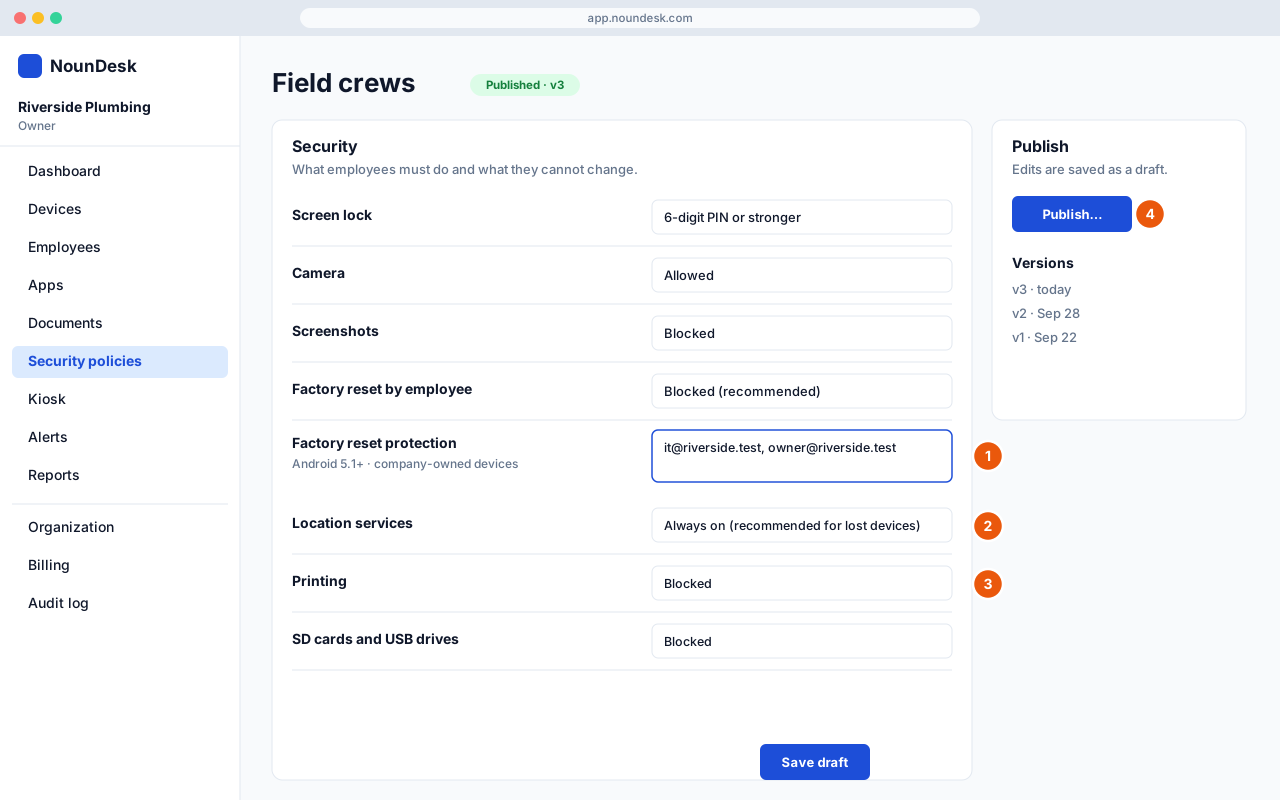
Factory reset protection
Factory reset protection stops a stolen phone being wiped and reused. If someone resets the device without NounDesk, it stays locked until one of the Google accounts you list signs in.
Who: all roles can view. Changing the setting needs Owner or Admin. Erasing a device needs Owner or Admin.
Why it matters
Without factory reset protection, anyone holding the phone can reset it from the recovery screen and set it up as their own. With it, the reset phone asks for one of your company’s Google accounts during setup and can’t be used without it.
Factory reset protection is off until you add at least one account. No template turns it on for you, because NounDesk can’t know which accounts your company controls.
Turn it on
- Go to Security policies and open the policy.
- In the Security card, find Factory reset protection.
- Enter the Google accounts that should be able to unlock a reset device,
for example
it@yourcompany.com. Separate several with commas, spaces or new lines. You can add up to 10. - Select Save draft, then Publish…. See Policy versions and publishing.
To turn it off, delete every account from the box and publish.
If an entry isn’t an email address, the editor says, for example, Factory reset protection: “it@company” is not an email address. More than 10 accounts shows Factory reset protection allows at most 10 accounts.
Requirements: Android 5.1 or newer, company-owned devices. The accounts must be Google accounts (Gmail or Google Workspace).
Choose accounts you’ll keep access to
The accounts you list are the only way back into a device that was reset outside NounDesk. Choose carefully:
- Use shared company accounts that don’t depend on one person, such as an IT or office account.
- Add at least two, so losing one account doesn’t lock you out.
- Don’t use an employee’s personal account. If they leave, you can’t unlock the phone.
- Keep the passwords somewhere the business can always reach, such as your company password manager.
- When someone with access leaves, update the list and publish.
What happens after a reset
Reset outside NounDesk (from Settings, if allowed, or the phone’s recovery screen):
- The phone restarts into setup.
- Setup asks for one of the Google accounts in the policy.
- Until one of those accounts signs in, the phone can’t be set up.
To use the phone again, sign in with one of your listed accounts during setup, then enroll it again with a QR code. See Add devices.
Factory reset by employee: Blocked (the Standard Business default) hides the reset option in Settings. It doesn’t stop a reset from the recovery screen, which is why factory reset protection matters.
Keep protection when you erase a device
When you erase a device from NounDesk, the Erase device dialog has a Keep factory reset protection (recommended) checkbox. It’s ticked by default.
- Open the device and select Erase device.
- Type
ERASEin Type ERASE to continue. - Leave Keep factory reset protection (recommended) ticked if the phone might not come back to you, for example if it’s lost or stolen.
- Select Erase device.
With the box ticked, one of the accounts in the device’s policy must sign in to set the phone up again after the erase. Untick it when you’re erasing a phone you have in hand and plan to reuse or hand on, so the next setup doesn’t need your accounts.
The checkbox has no effect if the device’s policy lists no accounts. Add accounts to the policy and publish before you need to erase a device. See Remote actions and Lost devices.