 NounDesk
Opening company documents (for employees)
Your company shares handbooks, safety sheets, price lists and forms with you through Company documents. This page explains how to open them on your work phone.
Who: employees your company has shared documents with. You don’t need a NounDesk account or a password.
Admins: this page is written for your staff. Feel free to send them the link. To share documents, see Company documents.
Before you start
- You need the work email your company has on file for you. If you’re not sure which one that is, ask your manager or admin.
- You need to be able to read that email, on the phone or anywhere else, to get your sign-in code.
Sign in
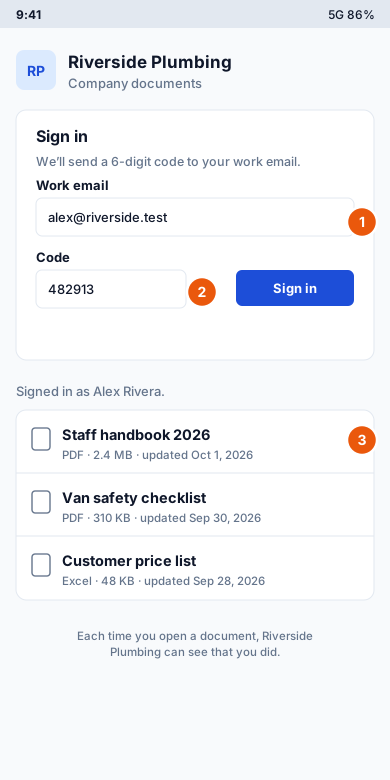
- Open Company documents on your work phone. Your company may have put it on your phone as an app, or sent you a link to open in the browser. You’ll see your company’s name and Company documents at the top.
- Under Sign in, enter your Work email and tap Send code.
- Check your email for a message titled Your (company name) documents sign-in code. It contains a 6-digit code.
- Back on the phone, type the code into Code and tap Sign in.
The code works once and expires after 10 minutes. If you typed the wrong email, tap Use a different email.
Once you’re signed in, you stay signed in on that phone for up to 30 days, so you won’t need a code every time.
Open a document
After you sign in, you’ll see Signed in as (your name) and a list of the documents shared with you. Each one shows its title, the type of file, its size and when it was last updated.
Tap a document to open it. It opens in your phone’s browser or the app that handles that type of file, such as a PDF viewer.
You’ll see only what your company has shared with you: documents for every employee, documents shared with you by name, and documents shared with the team your work phone belongs to. If nothing has been shared yet, you’ll see No documents yet.
- Your company can see when you open a document. Every open is recorded with your name and the time. The note at the bottom of the page reminds you of this.
- Documents aren’t stored on your phone for offline use. You need an internet connection to open them.
- Links to files only work for about a minute, so sending one to someone else won’t give them access.
Sign out
Tap Sign out at the top of the page. You’ll need a new code to sign in again. Sign out if you hand your phone to someone else.
Troubleshooting
No email arrives.
- Wait a minute or two, then check your spam or junk folder.
- Make sure you entered the work email your company has for you, with no typos. For privacy, the page looks the same whether or not the email is on the staff list, so it can’t tell you if you used the wrong one.
- Still nothing? Ask your admin to check that your employee record has your correct work email and that your record is active. Then tap Use a different email, enter it again and tap Send code.
“That code is not right or has expired.”
- Check you typed all 6 digits from the latest email. Asking for a new code cancels the old one.
- The code may be more than 10 minutes old. Tap Use a different email, enter your email again and tap Send code to get a new one.
- After 5 wrong tries the code stops working. Ask for a new one.
“Too many requests. Please wait a moment and try again.”
You’ve asked for several codes in a short time. Wait a while (up to an hour) and try again.
I can’t find a document I was told about.
It may not be shared with you yet, or it may have been removed. Ask your admin to check who it’s shared with.
I was signed out.
Sessions end after 30 days, when you tap Sign out, or if your company deactivates your employee record. Sign in again with a new code.