 NounDesk
Kiosk mode
Who: Owner, Admin.
Lock a device to one app, or a few. Think front-desk tablets, order screens or delivery scanners.
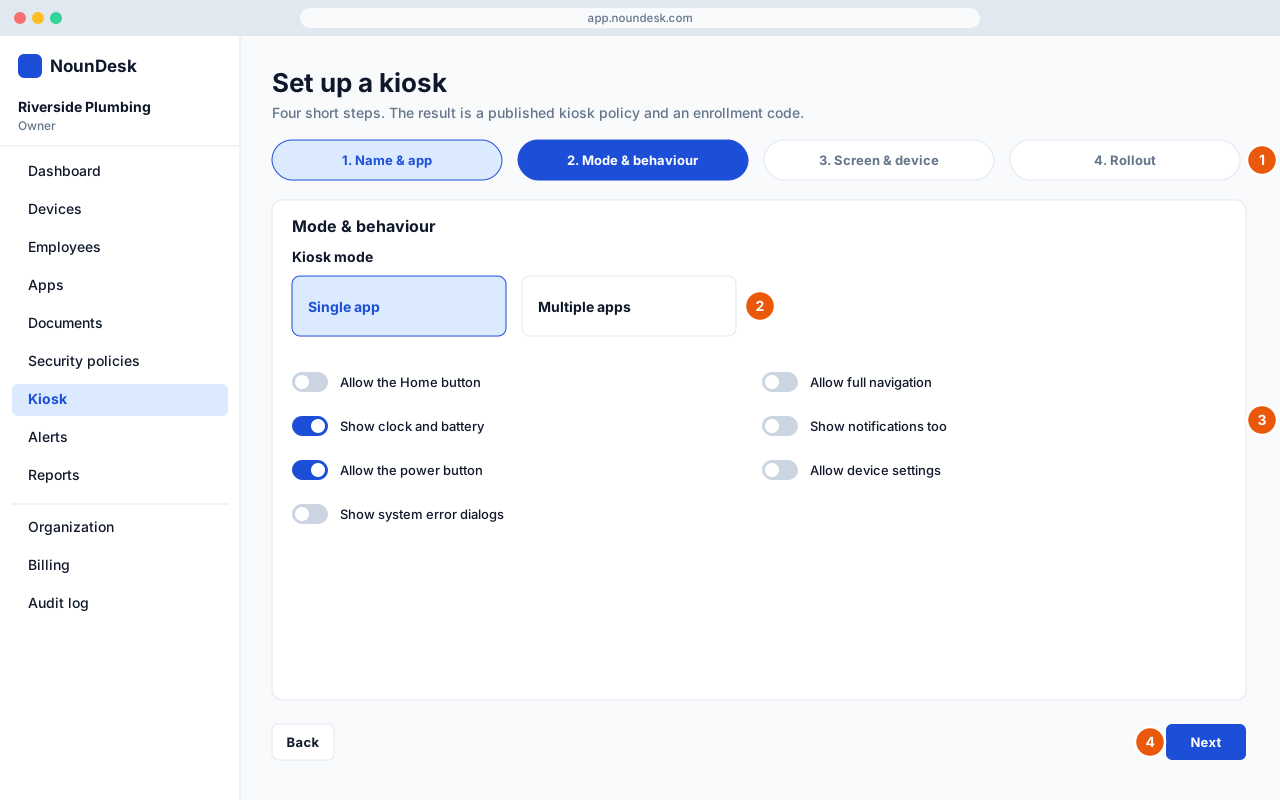
- Go to Kiosk → Set up a kiosk. The wizard has four steps: Name & app, Mode & behaviour, Screen & device, Rollout. In Name & app, name the kiosk and choose the app: From your apps, By package name, or A website.
- Mode & behaviour: choose Single app or Multiple apps.
- Choose what employees can reach. The options are Allow the Home button, Allow full navigation, Show clock and battery, Show notifications too, Allow the power button, Allow device settings and Show system error dialogs.
- Select Next to continue:
- Screen & device sets the screen brightness, the screen timeout (up to always on) and whether the screen stays awake while charging. It can also lock the volume and block Bluetooth, calls, SMS, USB storage, wallpaper changes and new accounts.
- Rollout chooses a device group and can create a reusable enrollment profile. Then select Create kiosk.
The kiosk page shows how many devices are Ready, Installing or Need attention. Use Enroll a device to add more.