 NounDesk
Remote support
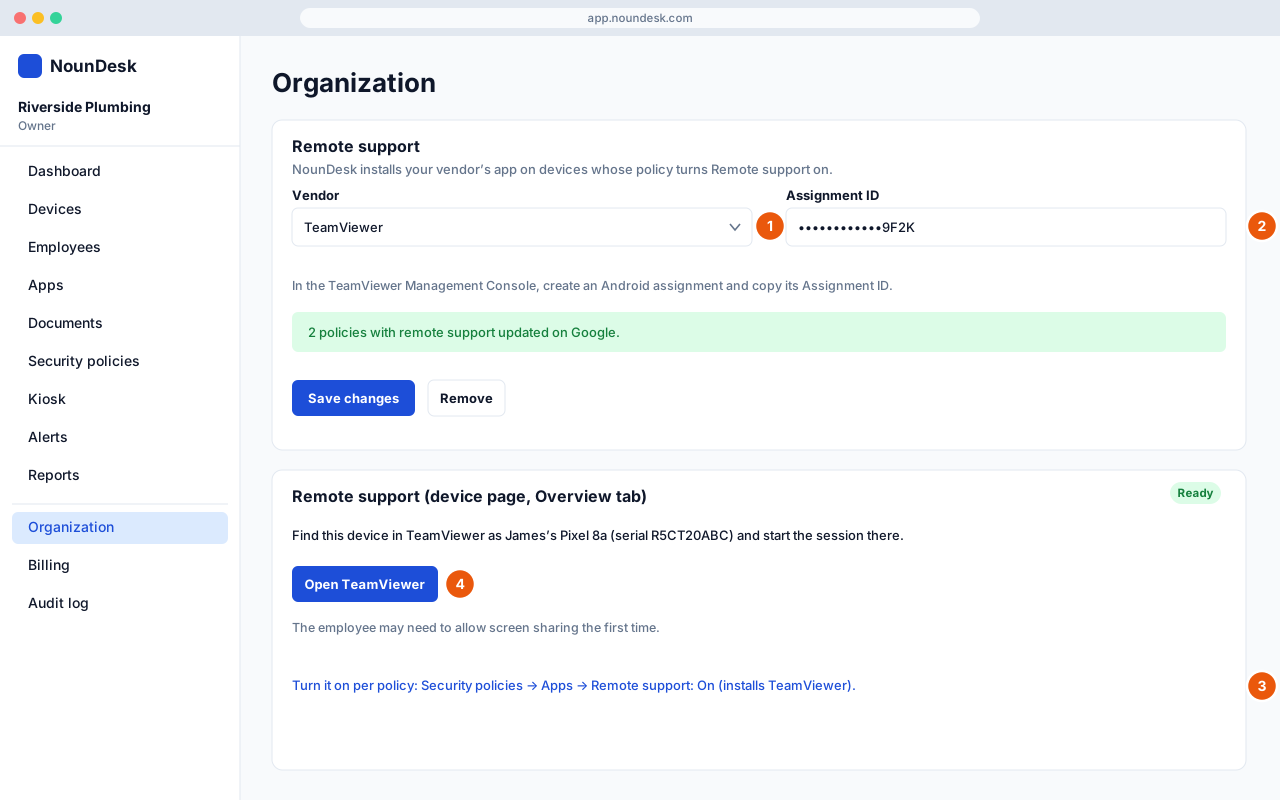
Who: Owner, Admin set it up. Requires a vendor account (TeamViewer, AnyDesk or Splashtop).
See an employee’s screen and help them without the trip. NounDesk installs and links your vendor’s app; the session runs in the vendor’s console.
- Go to Organization → Remote support and choose a Vendor.
- Paste the value from your vendor account, then select Set up remote
support:
- TeamViewer: the Assignment ID. Create an Android assignment in the TeamViewer Management Console.
- AnyDesk: the License key from my.anydesk.com.
- Splashtop: the Deploy code. In the Splashtop web console, go to Management → Deployment.
- Turn it on per policy: Security policies → Apps → Remote support: On. NounDesk installs the vendor’s app on those devices.
- To help someone, open their device. On the Overview tab, the Remote support card shows Ready once the app is installed. Select Open TeamViewer (or AnyDesk / Splashtop) and start the session there.
- The employee may need to allow screen sharing the first time.
- Your setup value is masked and only Owners and Admins can see or change it.
- Changing or removing the vendor updates every policy that uses it.