 NounDesk
Managed Google Play
The Google Play page opens your company’s own version of Google Play inside NounDesk. Use it to find business apps, turn a website into an app, publish your company’s own app, and arrange the Play Store employees see.
Who: all roles can open the page. Adding and arranging apps needs Owner or Admin. Requires Google connection.
Not available in demo mode. Google Play needs a real connection to Google, so in demo mode the page says Not available in demo mode. You can still add apps by package name on the Apps page. If your organization isn’t connected yet, the page says Connect Google first. See Connect Google and Demo mode.
Open Google Play
- Go to Apps and select Google Play.
- Choose a section at the top. Each one loads Google’s page inside NounDesk:
| Section | What it’s for |
|---|---|
| Browse Google Play | Find business apps and add them to your catalog. |
| Web apps | Turn a website into an app your devices can install. |
| Your own apps | Upload an app your company built. It’s published privately, visible only to your devices. |
| Arrange store | Choose what employees see in the Play Store on their devices. |
If the page doesn’t load, you’ll see Could not open Google Play. Check your connection and try again. with a button to try again.
Add apps from Google Play
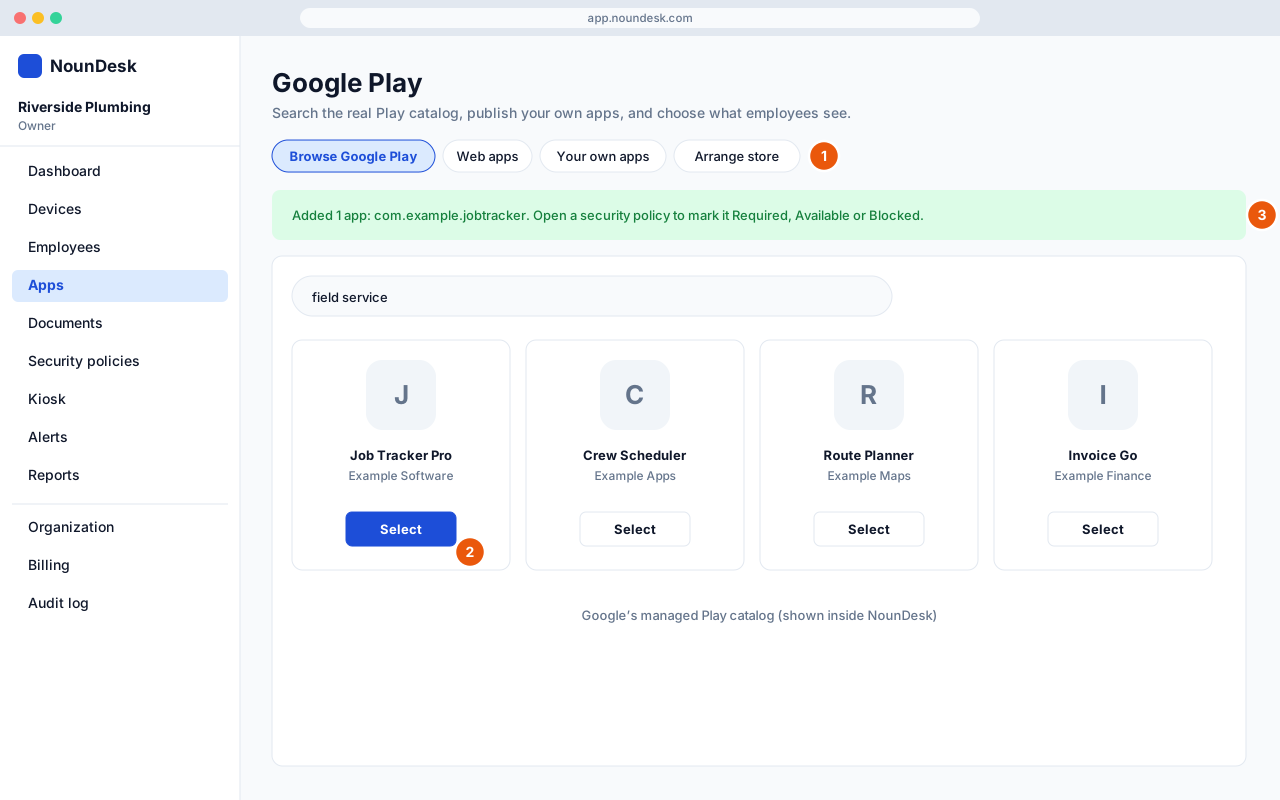
- Select Browse Google Play.
- Search for the app, for example “Slack”. You see the real Play listing with icons, screenshots and descriptions.
- Open the app and select it in Google’s page.
- NounDesk adds it to your catalog straight away and shows Added 1 app with its package name.
Adding an app to the catalog doesn’t install it. The next step is to set a rule for it in a security policy (below).
Turn a website into an app
- Select Web apps.
- Follow Google’s steps to create a web app, starting with its name and the website address.
- Select it to add it to your catalog.
Web apps are handy for online tools your team uses in the browser, such as a booking system. They can also be the app on a kiosk. See Kiosk mode.
Publish your own app
Your own apps opens Google’s private app upload. You can also reach it with Upload your own app on the Apps page. Step-by-step instructions are in Upload your own app.
Arrange the store
Arrange store lets you organize how apps appear in the Play Store on employees’ devices. Make the changes in Google’s page.
Make apps install, optional or blocked
Once an app is in your catalog, choose what happens to it in each security policy:
- Go to Security policies and open the policy.
- In the Apps card, choose the app in Add from your apps… and select
Add. You can also type a package name, such as
com.slack, and select Add. - Set its Rule:
| Rule | What happens on devices |
|---|---|
| Required (installs automatically) | The app installs by itself and employees can’t remove it. Its permissions are granted automatically. |
| Available (employee can install) | The app appears in the Play Store for employees to install if they want it. |
| Blocked | The app can’t be installed, and it’s removed from devices that already have it. |
- Optionally set a Minimum version code. Devices with an older version count as outdated on App compliance.
- Select Save draft, then Publish…. The preview warns you when a change removes an app from devices. See Policy versions and publishing.
Choose what employees can install
Google Play on the device, at the top of the Apps card, decides what employees see in the Play Store:
| Option | What employees can do |
|---|---|
| All apps except blocked ones | Install any Play app except the ones you block. The Standard Business default. |
| Only the apps listed here | See and install only the apps in this policy’s list. Used by Maximum Security and Kiosk. |
Switching to Only the apps listed here uninstalls apps that aren’t in the list. Add every app employees need before you publish. The publish preview warns you.