 NounDesk
The device page
Everything NounDesk knows about one device lives on its page. Open it from Devices by selecting the device’s name.
Who: all roles can view. Renaming, assigning and moving a device, and the action buttons, need Owner, Admin or Operator. Changing a device’s policy and Erase device need Owner or Admin.
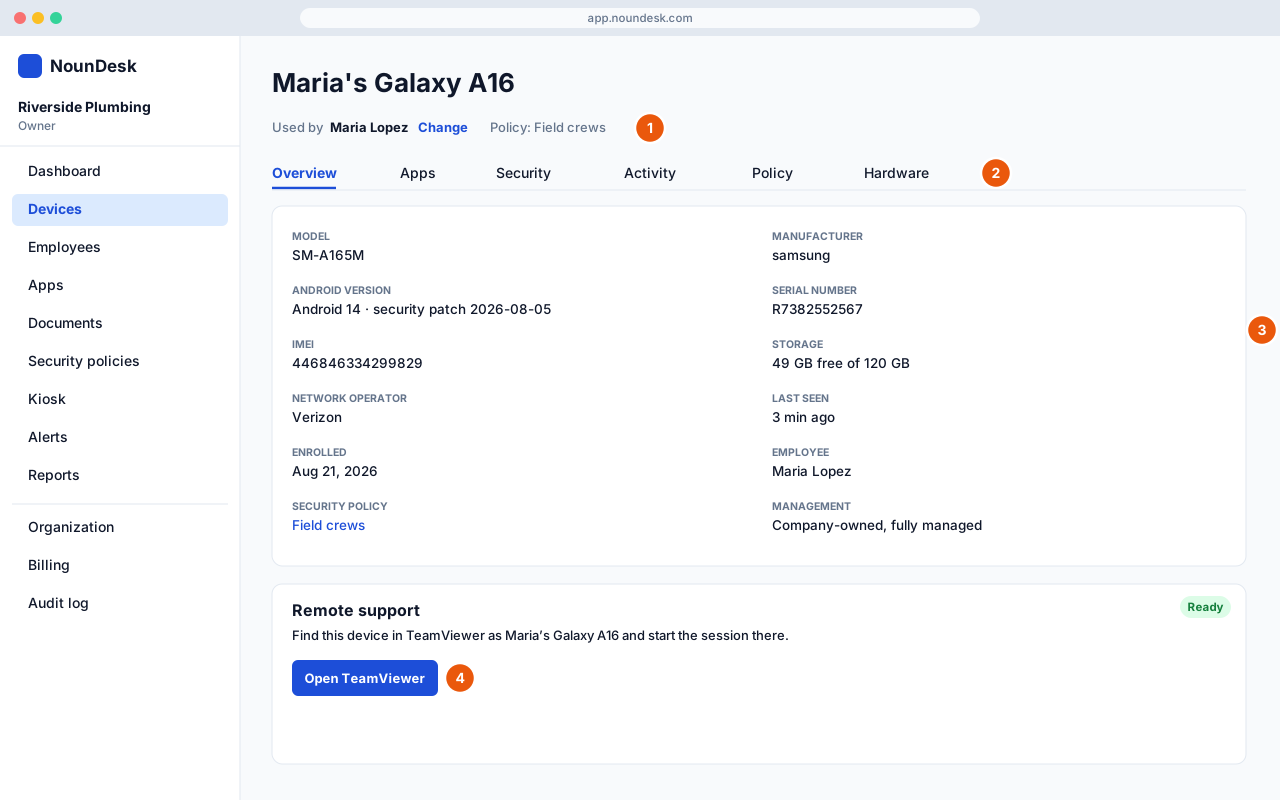
The header
At the top of the page:
- Name. Select the pencil icon (Rename device), type a new name (up to 120 characters) and save with the tick, or cancel with the cross.
- Status badges. A working device shows how recently it was in touch (for example Online) and its compliance (for example Compliant). A device that isn’t in normal use, such as one that’s Erased or Waiting for device, shows that instead. See Device status.
- Last seen and who uses it: Used by employee, or Unassigned. Select Assign (or Change) to open Assign to employee, pick an Employee (or Unassigned) and save.
- Policy: the device’s security policy.
- Group: pick a group from the menu, or No group. The change saves straight away.
- Action buttons: Lock, Reboot, Lost mode (or End lost mode), Clear app data, Refresh info, Reset password and Erase device. Buttons the device can’t use are greyed out with the reason underneath. Retire device appears for devices that are erased or never finished enrolling. See Remote actions.
After you send an action, a box under the buttons follows it live, for example Lock sent → Lock completed. See Command statuses. Dismiss hides it.
The page refreshes itself every 30 seconds, and every 5 seconds while an action or setup is in progress. If it can’t refresh, you’ll see Live updates paused with a retry button.
Overview tab
| Field | What it shows |
|---|---|
| Model | The device model. |
| Manufacturer | Who made it. |
| Android version | For example “Android 14 · security patch 2026-08-01”. |
| Serial number | The hardware serial number. |
| IMEI | The phone’s IMEI, if it has one. |
| Storage | Free and total space, with a bar that turns amber above 75% used and red above 90%. |
| Network operator | The mobile carrier. |
| Last seen | When the device last checked in, or Not seen yet. |
| Enrolled | When it joined NounDesk. |
| Employee | Who uses it, or Unassigned. |
| Security policy | Its policy, linked to Security policies. |
| Management | Company-owned, fully managed, Work profile or Not reported yet. |
A dash (—) means the device hasn’t reported that detail.
Remote support card
If your organization has set up remote support, the Overview tab also shows a Remote support card with one of three badges:
| Badge | Meaning |
|---|---|
| Off | Remote support is off in this device’s security policy. A link takes you to the policy to turn it on. |
| Installing | Google Play is installing the vendor’s app. It’s usually ready a few minutes after the device next checks in. |
| Ready | The app is installed. Find the device in the vendor’s console by the name and serial shown, then select Open vendor. |
Apps tab
Every app the device reports, with its Name, Package, Version and State (Installed or Removed). The tab shows a count of apps. Until the first report you’ll see No app report yet.
Security tab
Three cards:
- Device trust. A rating of Trusted, At risk, Not trusted or Not reported yet, with each check marked pass, warning, fail or not reported. See Device trust.
- Location. Shown only while a device is in lost mode: the latest coordinates, how long ago, accuracy and battery, Open in Google Maps, Open trail in Google Maps, and Recent reports. Otherwise it says No location reported. See Lost devices and location.
- Compliance. The device’s compliance badge and each open issue, with its explanation and What to do. Each issue is labelled Resolving automatically or Action needed, and shows when it was first seen and last confirmed. With no issues it says No security issues reported. Select N resolved issues to see past issues and when they cleared. See Fix compliance issues.
The tab label shows a count of open issues.
Activity tab
A timeline, newest first, of everything that happened to the device: actions sent from NounDesk (each with its status badge, and marked sent by an admin), policy and group changes, assignments, status changes, password resets, lost-mode location reports, enrollment and erase. Hover over a time to see the exact date. With nothing yet you’ll see No activity yet.
Policy tab
- Change policy (Owner or Admin): pick a policy from the list and select Apply. You’ll see “Policy changed. The device applies it on its next check-in, usually within a minute.” Policies marked (not published yet) can’t be applied until they’re published.
- A status line tells you whether the device is up to date:
- The device is running the current policy.
- The device has not picked up the latest policy yet. It syncs automatically when online.
- The policy applies as soon as the device finishes enrolling. (while it’s still enrolling)
- The details:
| Field | What it shows |
|---|---|
| Assigned policy | The policy NounDesk wants on the device, or None. |
| Applied policy version | The version the device is running, for example v3. |
| Last policy sync | When the device last confirmed its policy, or Never. |
| Applied policy (technical) | Google’s internal name for the policy. Useful for support. |
The link at the bottom opens the policy, where you can see each setting and which Android versions it needs. See Policy versions.
Hardware tab
Manufacturer, Brand, Model, Hardware, Memory (RAM), Storage, Build number, Android API level, Wi-Fi MAC address and MEID.