 NounDesk
Employees
Who: all roles can view. Changes need Owner, Admin or Operator.
-
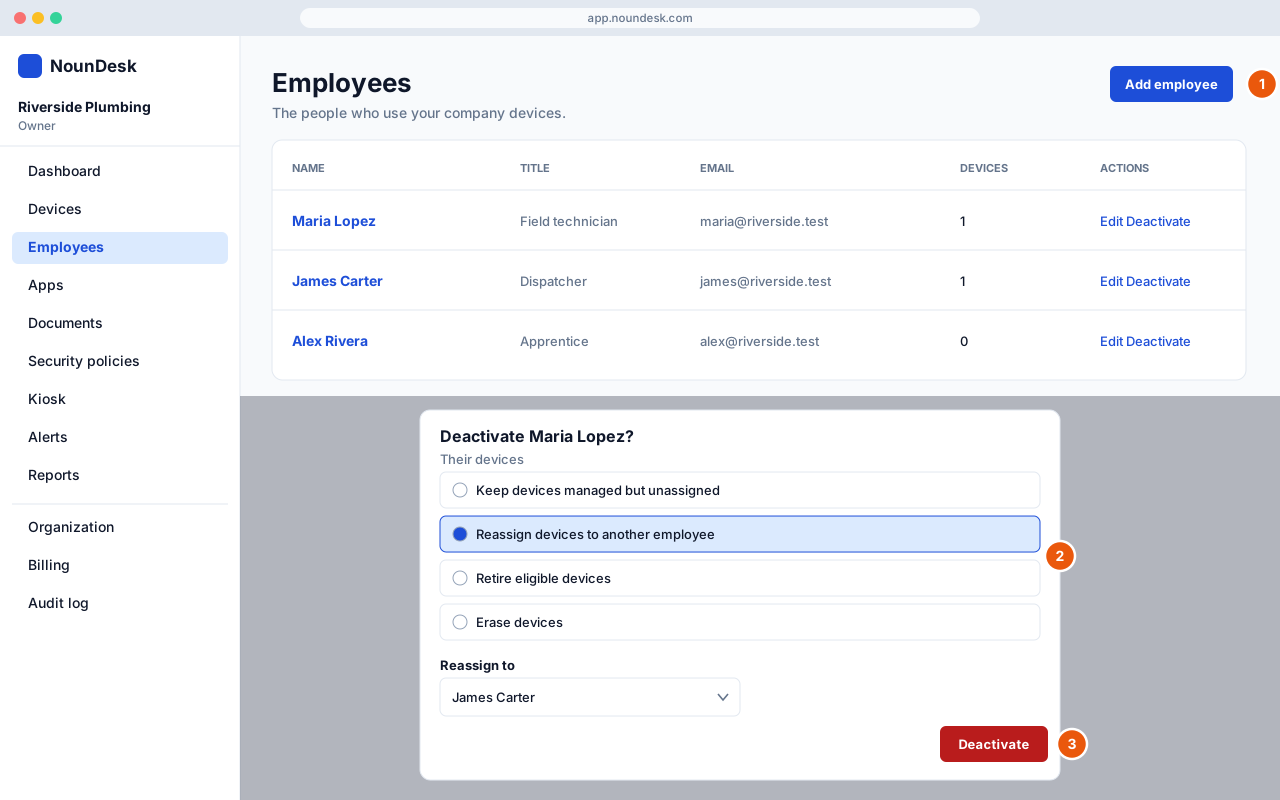
Go to Employees → Add employee. Enter Full name and optionally a Job title, Email and Phone, then select Add employee. Employees need an Email to sign in to company documents.
-
To assign a device, open the device and select Assign, or pick the employee when you enroll it.
-
When someone leaves, open them and select Deactivate employee…. Choose what happens to their devices:
- Keep devices managed but unassigned
- Reassign devices to another employee
- Retire eligible devices
- Erase devices (you type
ERASEto confirm)
Then select Deactivate. A deactivated employee can be brought back with Reactivate.