 NounDesk
System and app updates
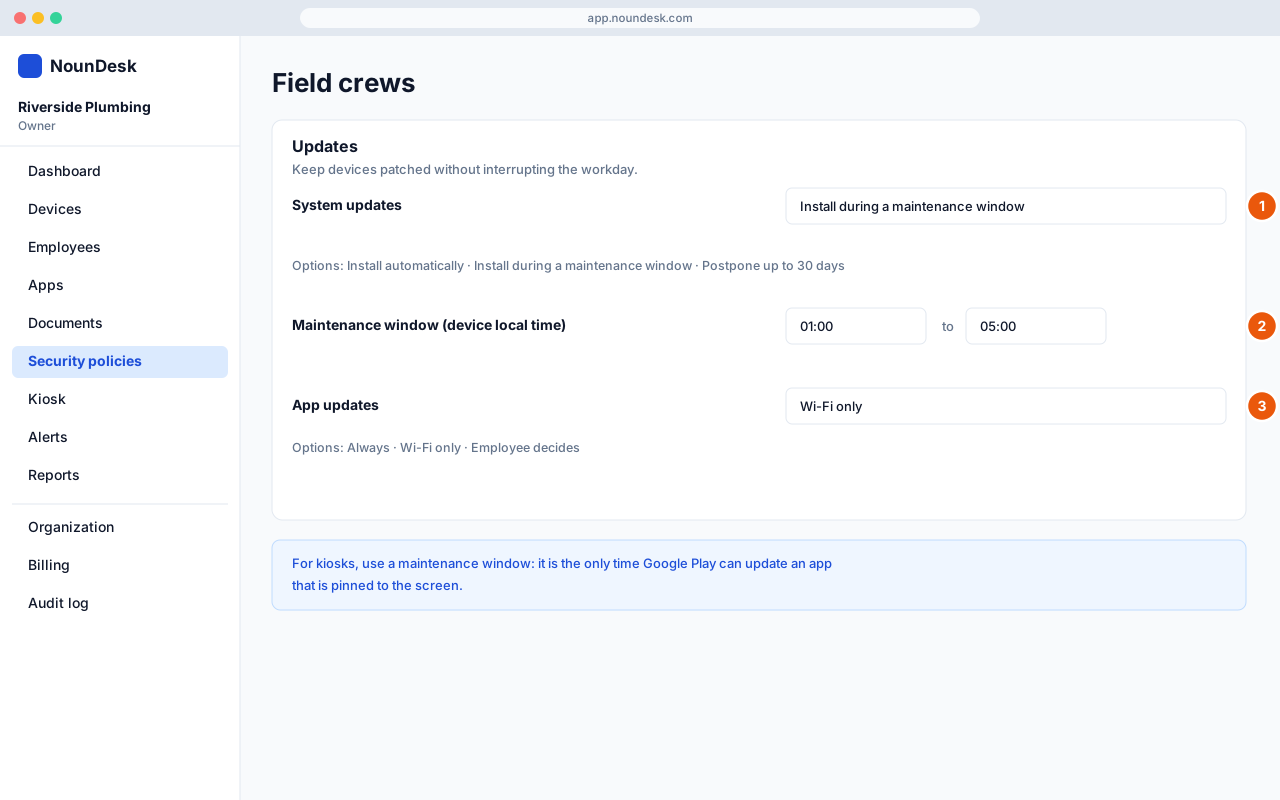
The Updates card in a security policy decides when devices install Android system updates and when Google Play updates apps. The goal is to keep devices patched without interrupting the workday.
Who: all roles can view. Changing settings needs Owner or Admin.
System updates
Open the policy under Security policies and find System updates in the Updates card. Choose one option:
| Option | What happens |
|---|---|
| Install automatically | Devices install a system update as soon as it’s available. |
| Install during a maintenance window | Devices install updates only during the daily time range you set. This is the Standard Business default. |
| Postpone up to 30 days | Devices hold off installing system updates for up to 30 days. Security patches are not delayed. |
System update settings need Android 6.0 or newer and company-owned devices.
- NounDesk has no “install update now” button. Updates follow the schedule in the policy.
- Whether an update is available, and when, is up to the device maker and mobile carrier. NounDesk can’t make an update appear sooner.
Set the maintenance window
- Set System updates to Install during a maintenance window.
- Under Maintenance window (device local time), enter the start and end
times in 24-hour HH:MM format, for example
01:00to05:00. - Select Save draft, then Publish…. See Policy versions and publishing.
The times are in each device’s own time zone, so a window of 01:00 to 05:00 means 1 am to 5 am wherever the device is.
- Choose hours when devices are switched on but not in use, such as overnight while they charge.
- If you see Enter the update window as HH:MM, for example 01:00., check that both times use a colon and two digits for minutes.
Which option to choose
- Everyday company phones: Install during a maintenance window overnight (Standard Business, Field Worker).
- Devices that handle sensitive information: Install automatically, so security fixes arrive as soon as possible (Maximum Security).
- A short pause before a busy period: Postpone up to 30 days. Switch back afterwards so devices don’t fall behind.
The Security update age check under Device trust warns when a device’s security patch is more than 90 days old.
App updates
App updates controls when Google Play updates the apps on the device. Works on Android 5.0 and newer.
| Option | What happens |
|---|---|
| Always | Apps update whenever an update is available, on Wi-Fi or mobile data. |
| Wi-Fi only | Apps update only on Wi-Fi, which saves mobile data. This is the Standard Business default. |
| Employee decides | The employee chooses in Google Play’s settings. |
To make sure every device has at least a certain version of an app, set its Minimum version code in the policy’s Apps card. Devices with an older version show as Outdated on App compliance.
Kiosks: use a maintenance window
Kiosk devices should always use Install during a maintenance window. It’s the only way Google Play can update an app that’s pinned to the screen. If a kiosk policy uses another option, the editor and the publish preview remind you.
Pick a window outside opening hours, for example overnight when the shop is closed. See Kiosk mode.