 NounDesk
Lost devices and location
Who: Owner, Admin, Operator.
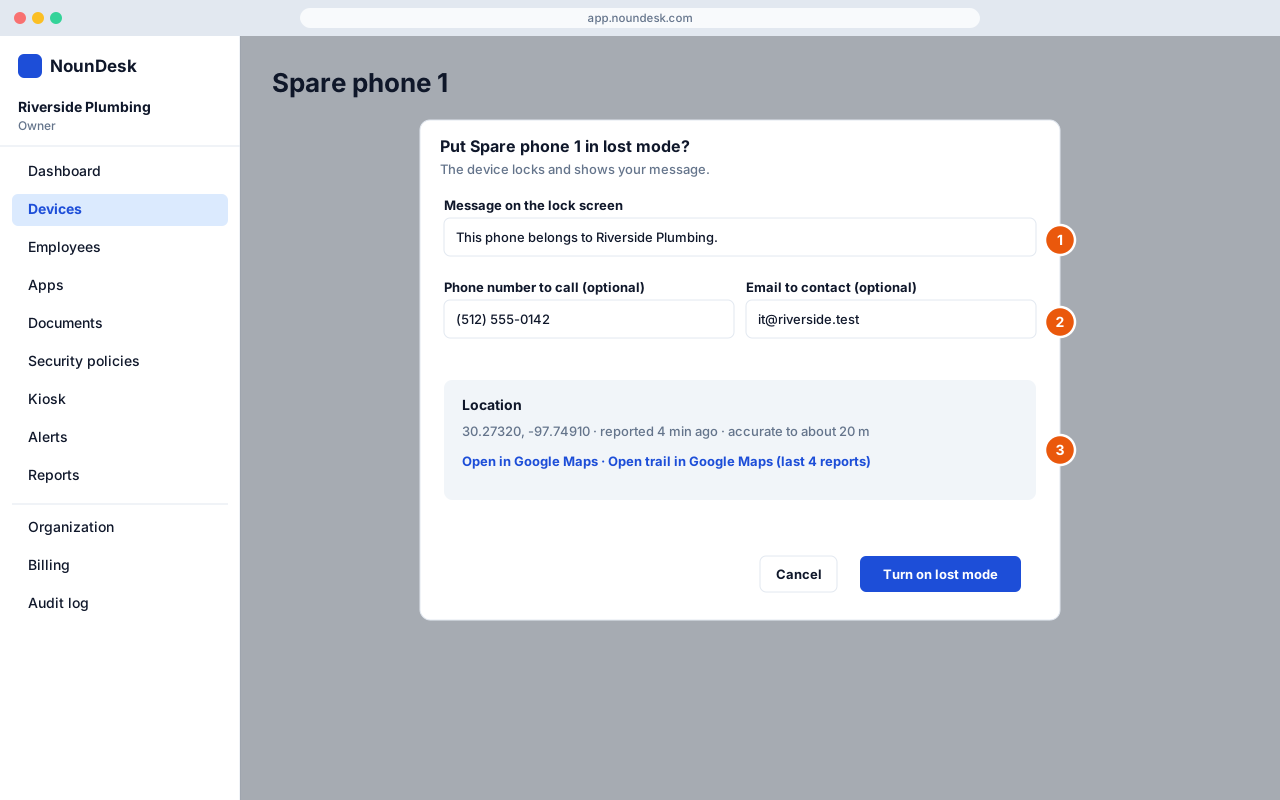
- Open the device and select Lost mode. Write the Message on the lock screen (for example “This phone belongs to Riverside Plumbing”).
- Add a Phone number to call and an Email to contact (both optional), then select Turn on lost mode.
- On the Security tab, the Location card shows where the device reported from, how accurate it was and its battery level. Use Open in Google Maps, or Open trail in Google Maps to see a route through its recent reports.
- Privacy: NounDesk only receives a location while a device is in lost mode. It never tracks devices in normal use.
- If a lost device hasn’t reported for over an hour, NounDesk warns that it may be switched off, out of signal or out of battery.
- Set Location services to Always on in the device’s security policy so a lost phone can always report where it is (see Security policies).
- When the device is found, select End lost mode.