 NounDesk
Fix compliance issues
When a device doesn’t fully follow its security policy, it reports an issue. NounDesk turns each one into plain English with a What to do step. This page lists every issue it can show.
Who: all roles can see issues. Fixing them often means editing a policy (Owner or Admin) or asking the employee to do something on the device.
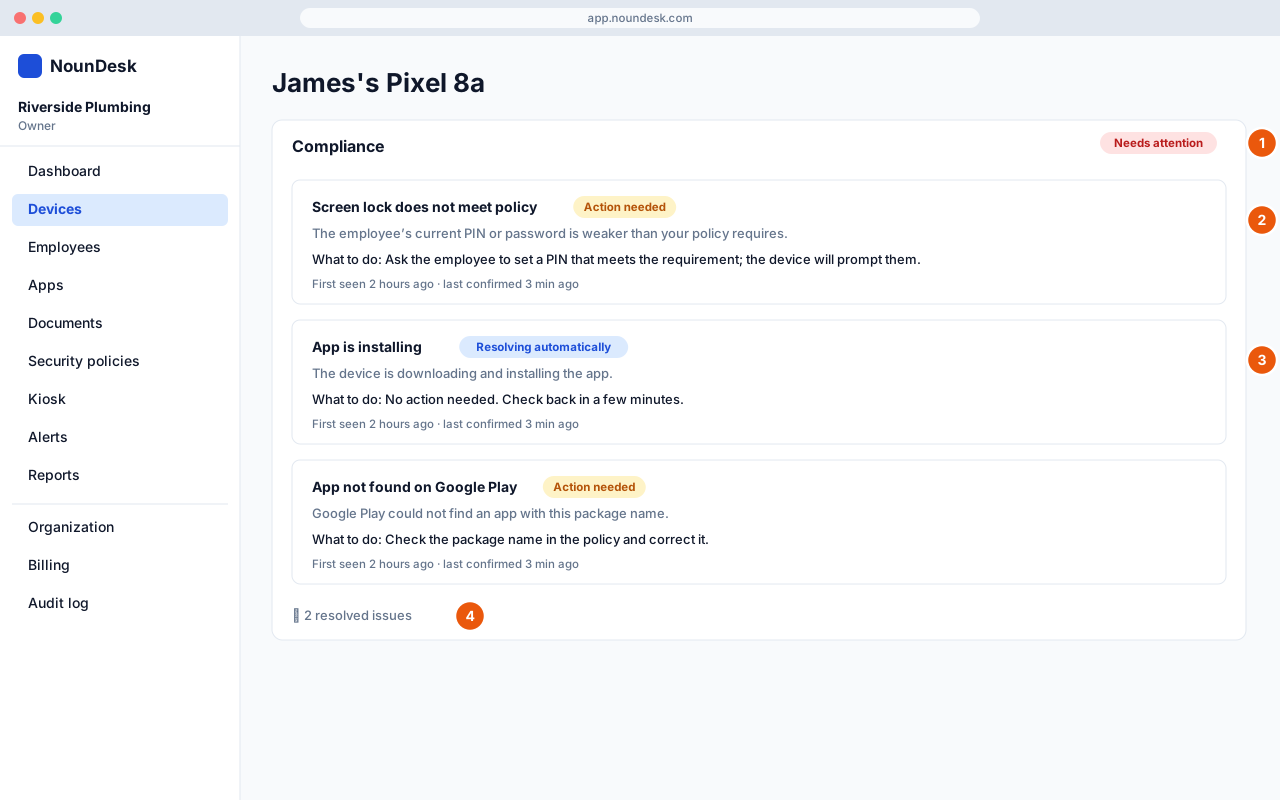
Where to find issues
- Open the device and select the Security tab. The tab label shows how many issues are open.
- The Compliance card lists each open issue with its title, an explanation, What to do, and when it was First seen and last confirmed.
- Each issue has a badge:
- Resolving automatically: the device is still working on it, or it usually clears by itself. Check back later.
- Action needed: it won’t clear until someone fixes the cause.
- Select N resolved issues to see past issues and when each one cleared.
How issues clear
NounDesk checks issues again every time the device reports in. When the device stops reporting an issue, NounDesk marks it resolved at once. You don’t need to close issues yourself. If the device reports the same problem again later, it appears as a new open issue.
The device’s compliance badge follows its open issues:
- Needs attention: at least one issue is stopping the device from following its policy.
- Attention: only issues that are waiting on the device or the employee (an app installing, a setting being applied, a blocked app being removed, or an employee action).
- Compliant: no open issues.
See Device status.
App install problems
In these, the explanation ends with the app’s package name in brackets.
| Title | Explanation | What to do | Badge |
|---|---|---|---|
| App is installing | The device is downloading and installing the app. | No action needed. Check back in a few minutes. | Resolving automatically |
| App not found on Google Play | Google Play could not find an app with this package name. | Check the package name in the policy and correct it. | Action needed |
| App not approved for your organization | The app has not been approved in managed Google Play for your organization. | Approve the app in the Apps section, then re-apply the policy. | Action needed |
| App permissions need approval | The app requested new permissions that have not been accepted. | Review and accept the app’s permissions, then re-apply the policy. | Action needed |
| App not available in this country | Google Play does not offer this app in the device’s country. | Choose a different app or contact the app developer. | Action needed |
| No app licenses left | All purchased licenses for this app are in use. | Buy more licenses in managed Google Play or remove the app from another device. | Action needed |
| Device not fully enrolled | The device has not finished enrolling, so apps cannot be installed yet. | Finish setup on the device or enroll it again. | Resolving automatically |
| Managed Google Play account problem | The managed account on the device is no longer valid. | Erase and re-enroll the device. | Action needed |
| App install waiting for a better connection | The device’s network connection was too unreliable to download the app. | Connect the device to Wi-Fi. The install will retry automatically. | Resolving automatically |
| Not enough storage for the app | The device does not have enough free space to install the app. | Free up space on the device (remove photos, videos or unused apps). | Action needed |
| App not compatible with this device | Google Play reports the app does not support this device model or Android version. | Choose a compatible app or exclude this device from the requirement. | Action needed |
| App could not be installed | The device could not install the app. | Check the app in the policy and make sure the device is online. | Action needed |
Required and blocked apps
The app is replaced by the app’s package name.
| Title | Explanation | What to do | Badge |
|---|---|---|---|
| Required app not installed yet | The app is required by the policy but is not on the device yet. | No action needed. The device installs it automatically when online. | Resolving automatically |
| Required app is out of date | The app is older than the minimum version your policy requires. | The device updates it automatically when connected to Wi-Fi. Ask the employee to open Google Play if it does not. | Resolving automatically |
| Required app not compatible | The app is not compatible with this device. | Choose a compatible app or remove the requirement for this device. | Action needed |
| Blocked app is installed | The app is blocked by policy but is still on the device. | The device removes it automatically. If it stays, ask the employee to uninstall it. | Resolving automatically |
| App signature does not match | The app on the device is signed differently than the version your policy expects. | Remove the app from the device and let it reinstall from Google Play. | Action needed |
Policy settings
Setting is replaced by the setting’s name, for example “screen lock”, “camera” or “system updates”.
| Title | Explanation | What to do | Badge |
|---|---|---|---|
| Needs a newer Android version | The setting setting requires a newer Android version than this device has. | Update the device’s Android version if available, or relax this setting for older devices. | Action needed |
| Not available for this device type | The setting setting only works on company-owned, fully managed devices. | Re-enroll the device as company-owned, or remove this setting. | Action needed |
| Device does not support this setting | This device model cannot apply the setting setting. | No fix is available on this device. Consider a different setting or device. | Action needed |
| Setting not supported on this device | The device’s management app does not support the setting setting. | Update Android Device Policy on the device, or remove this setting. | Action needed |
| Policy value not accepted | The device rejected the value for setting. | Edit the policy and choose a different value for this setting. | Action needed |
| Applying policy… | The setting setting is being applied on the device. | No action needed. This clears once the device confirms. | Resolving automatically |
| Feature not enabled for your account | Google has not enabled the setting feature for this service. | Contact support. This is a platform configuration issue, not a device problem. | Action needed |
| Issue with setting | The device reported that this policy setting is not applied. | Re-apply the policy. If the issue persists, contact support with this device’s details. | Action needed |
Things the employee needs to do
| Title | Explanation | What to do | Badge |
|---|---|---|---|
| Screen lock does not meet policy | The employee’s current PIN or password is weaker than your policy requires. | Ask the employee to set a PIN that meets the requirement; the device will prompt them. | Action needed |
| Screen lock password expired | The policy requires a new password and the employee has not set one yet. | Ask the employee to change their PIN or password when prompted. | Action needed |
| Employee needs to unlock the device | The device must be unlocked once before the new screen lock rules take effect. | Ask the employee to unlock the device with their PIN or password. | Resolving automatically |
| Employee must remove a Wi-Fi network | A saved Wi-Fi network conflicts with the managed network settings. | Ask the employee to forget the conflicting Wi-Fi network in Settings. | Action needed |
| Employee action needed | The setting setting needs the employee to do something on the device. | Ask the employee to follow the prompt shown on the device. | Action needed |
Tips
- “Re-apply the policy” means publishing it again or moving the device onto it: see Security policies and the device’s Policy tab.
- If an issue marked Resolving automatically stays open, check Last seen. Issues only clear when the device reports in.
- Several devices with the same app problem? Check App compliance on the Apps page.