 NounDesk
Enrollment profiles
An enrollment profile is a saved setup for new devices. Every device enrolled with a profile gets its group and security policy automatically, which is handy when ten phones need the same setup.
Who: Owner, Admin, Operator create and use profiles. Viewers can see them. Choosing the organization-wide default profile under Organization needs an Owner.
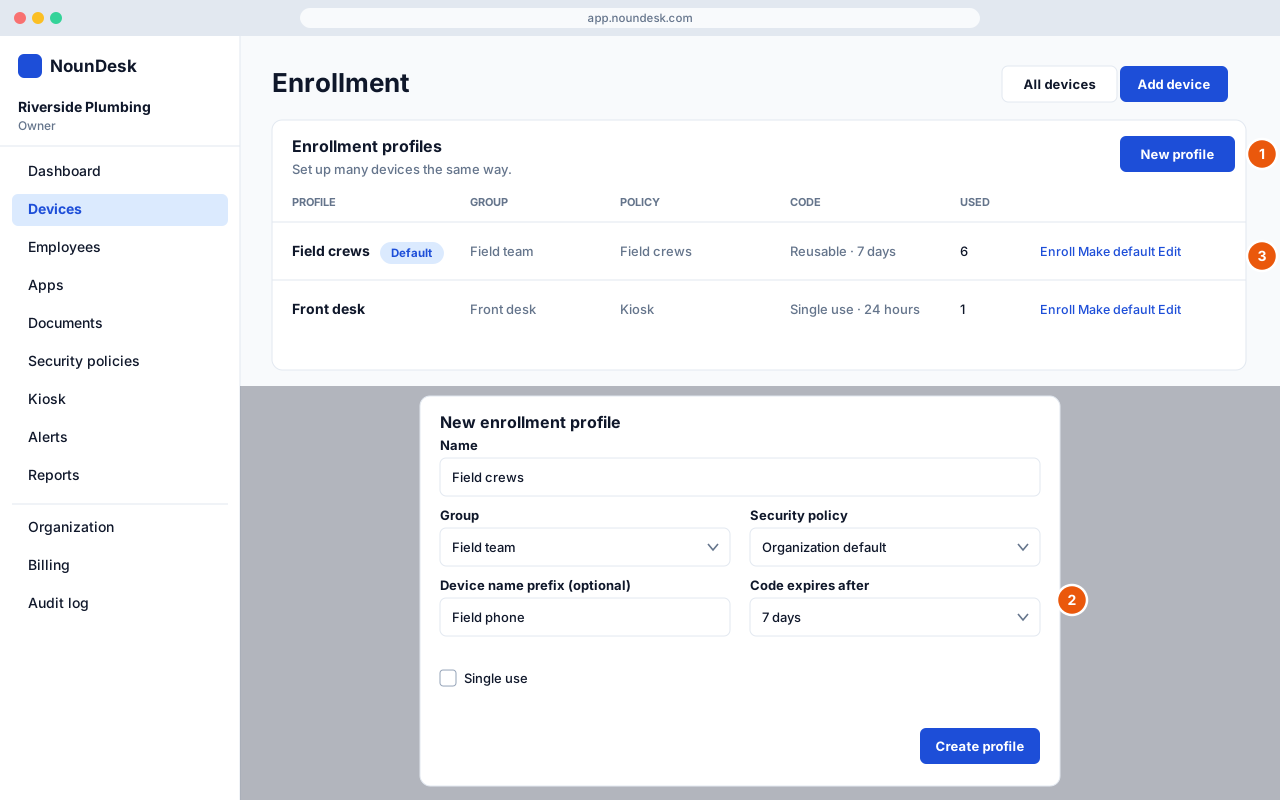
Create a profile
- Go to Devices → Enrollment. Under Enrollment profiles, select New profile.
- Fill in the fields (see the table below).
- Select Create profile. You’ll see Profile “name” saved.
| Field | What it does |
|---|---|
| Name | Required, up to 80 characters, for example “Field crews”. Each profile name must be unique. |
| Description (optional) | A note for your team, up to 300 characters. |
| Group | Devices join this group. Choose No group to leave them out of groups. |
| Security policy | The policy devices get. Organization default uses your default security policy. |
| Device name prefix (optional) | Devices are named “Prefix 1”, “Prefix 2” and so on, unless you type a name when you enroll. Up to 40 characters, for example “Crew phone”. |
| Code expires after | 1 hour, 24 hours, 7 days or 30 days. |
| Single use | Ticked (the default): each code works for one device. Unticked: one reusable code enrolls a whole batch until it expires. |
The profile list shows each profile’s group, policy, code type (Single use or Reusable with its expiry), and how many times it has been Used. A profile with a prefix shows Names devices “Prefix N”.
Single use or reusable? Single use is safer: if a code is photographed or shared, it can only ever enroll one device. Use a reusable code when you’re setting up a box of phones in one sitting, and pick a short expiry.
How device names are numbered
When you don’t type a device name, NounDesk names the device after the prefix plus a number. The number counts every code generated from that profile, so it goes up by one each time. With no prefix, the profile’s name is used instead.
Enroll devices from a profile
- On the profile, select Enroll. This opens Add device with the profile already chosen.
- Check the details. The page shows Managed by profile: name, plus its policy and group. If the profile has a prefix, Device name becomes optional.
- Select Generate QR code and follow Add devices.
You can also choose the profile in the Enrollment profile list on Devices → Add device.
Enroll only appears once your organization is connected to Google.
On Add device, the expiry choices are 1 hour, 24 hours, 7 days and 30 days, so a profile’s expiry carries over as it is.
Edit a profile
- Select Edit on the profile.
- Change the fields and select Save profile.
Changes apply to codes you generate from now on.
Delete a profile
- Select Delete on the profile.
- Confirm with Delete profile.
Codes already generated with the profile keep working, and devices keep their group and policy.
Make a profile the default
Select Make default on a profile. It gets a Default badge, and Add device starts with it already selected (shown as name (default) in the list). Only one profile has the badge at a time.
How defaults work together
Owners can also set three defaults under Organization → Defaults for new devices: Default enrollment profile, Default security policy and Default group. Select Save defaults to keep them.
When you open Add device, NounDesk fills the form in like this:
- If you came from a profile’s Enroll button, that profile is selected.
- Otherwise the Default enrollment profile from the Organization page is selected.
- If that isn’t set, the profile with the Default badge is selected.
- The Security policy starts at the Default security policy, unless the selected profile sets its own policy.
Whatever is on the form when you select Generate QR code is what the device gets. You can change any of it first, or choose No profile — set everything below.
- A profile whose policy is Organization default uses the Default security policy.
- Add device starts with your Default group (Organization → Defaults for new devices). A profile’s own group replaces it when you pick the profile.